 RefSupport
Prepare
Import matches from supported competitions, capture teams and rosters, and keep your own documents available offline.

From practice, for practice
RefSupport assists referee observers and technical delegates at handball matches: prepare matches, document match time and events, capture observations and analyses, and export reports and expense claims.
In use from the top division to grassroots handball. Built from match-day practice, for match-day practice.
Import matches from supported competitions, capture teams and rosters, and keep your own documents available offline.
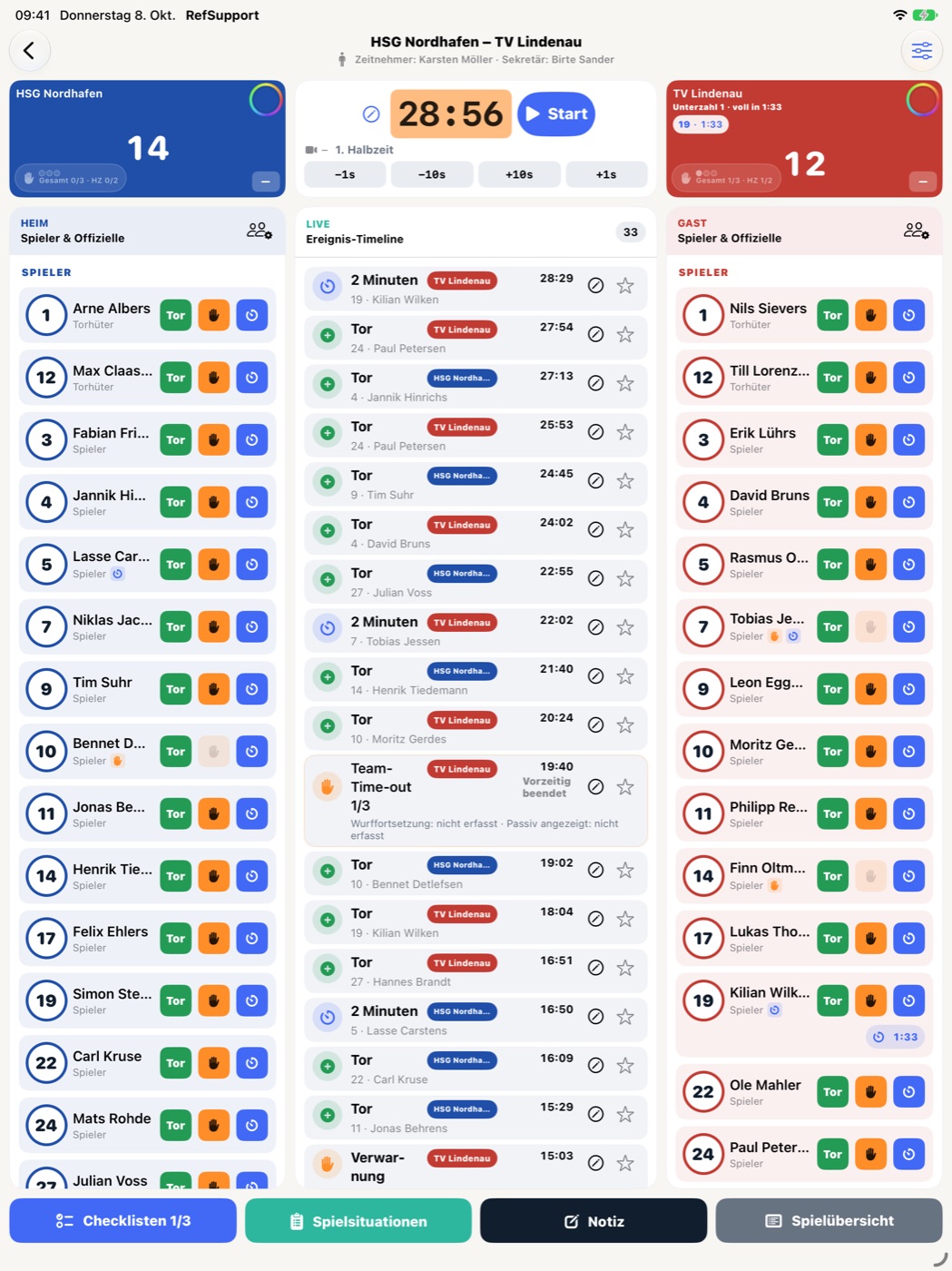
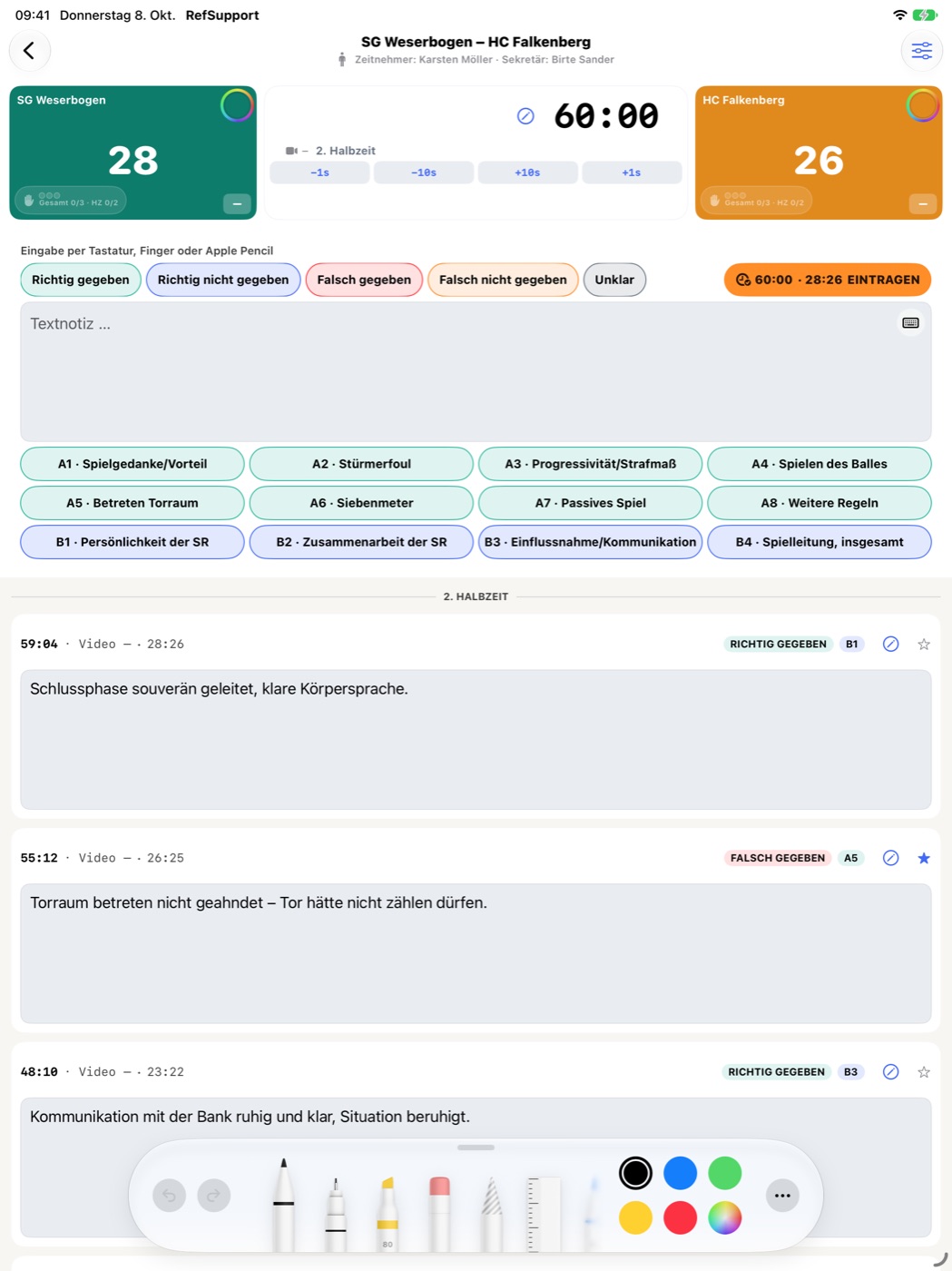
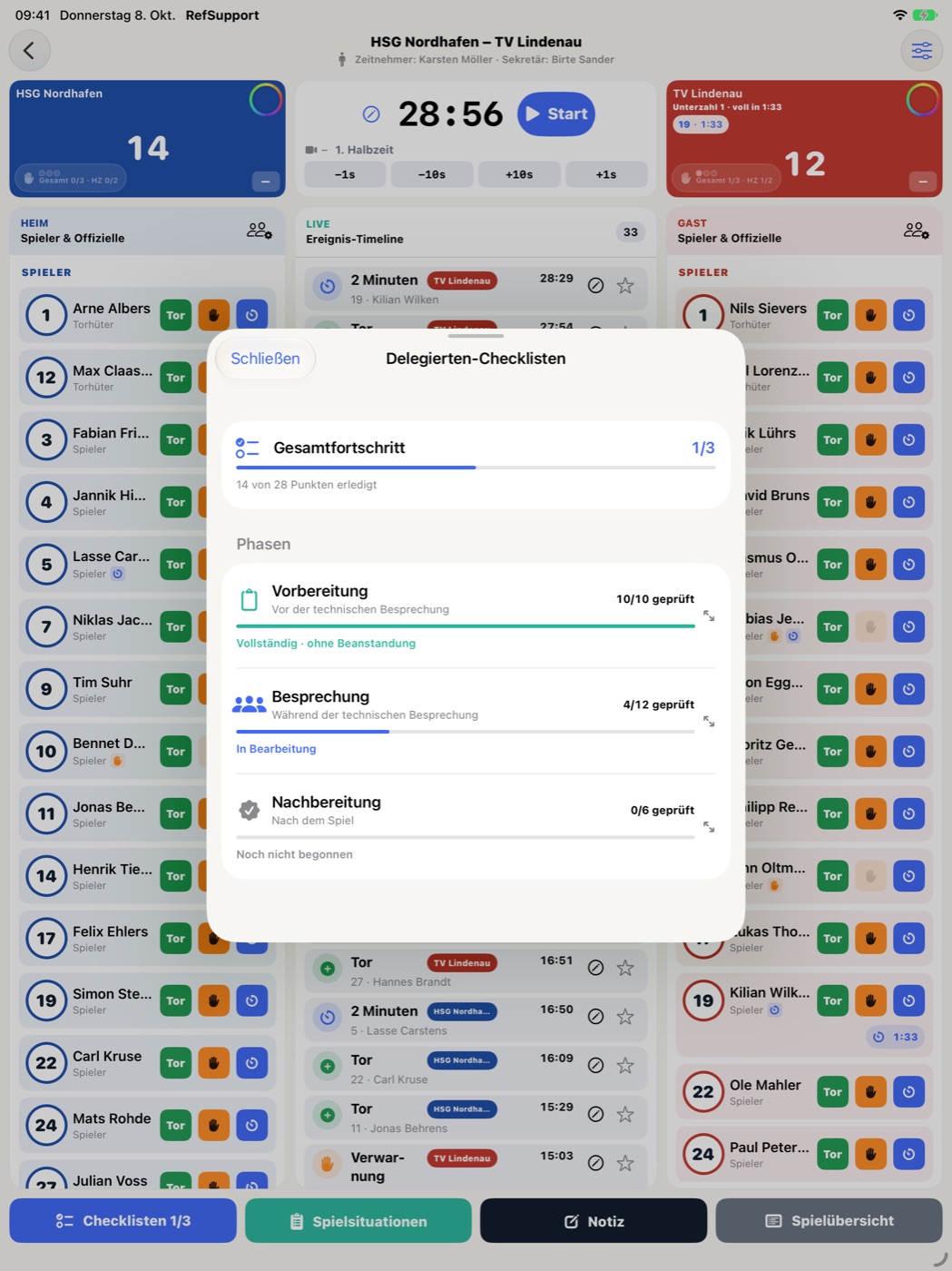
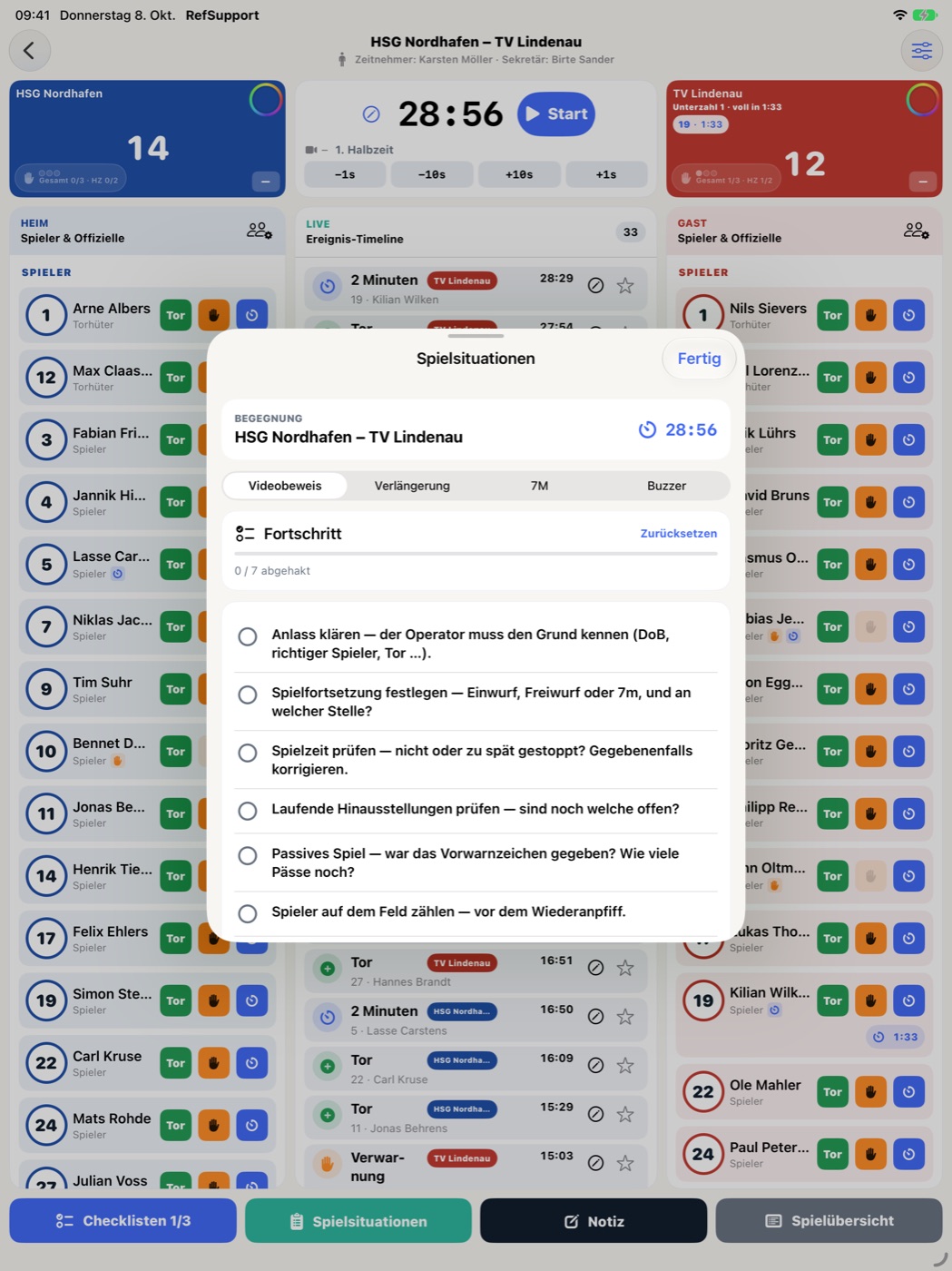
Keep the match clock, goals, penalties, team time-outs, checklists, text notes, and handwritten observations in one place.
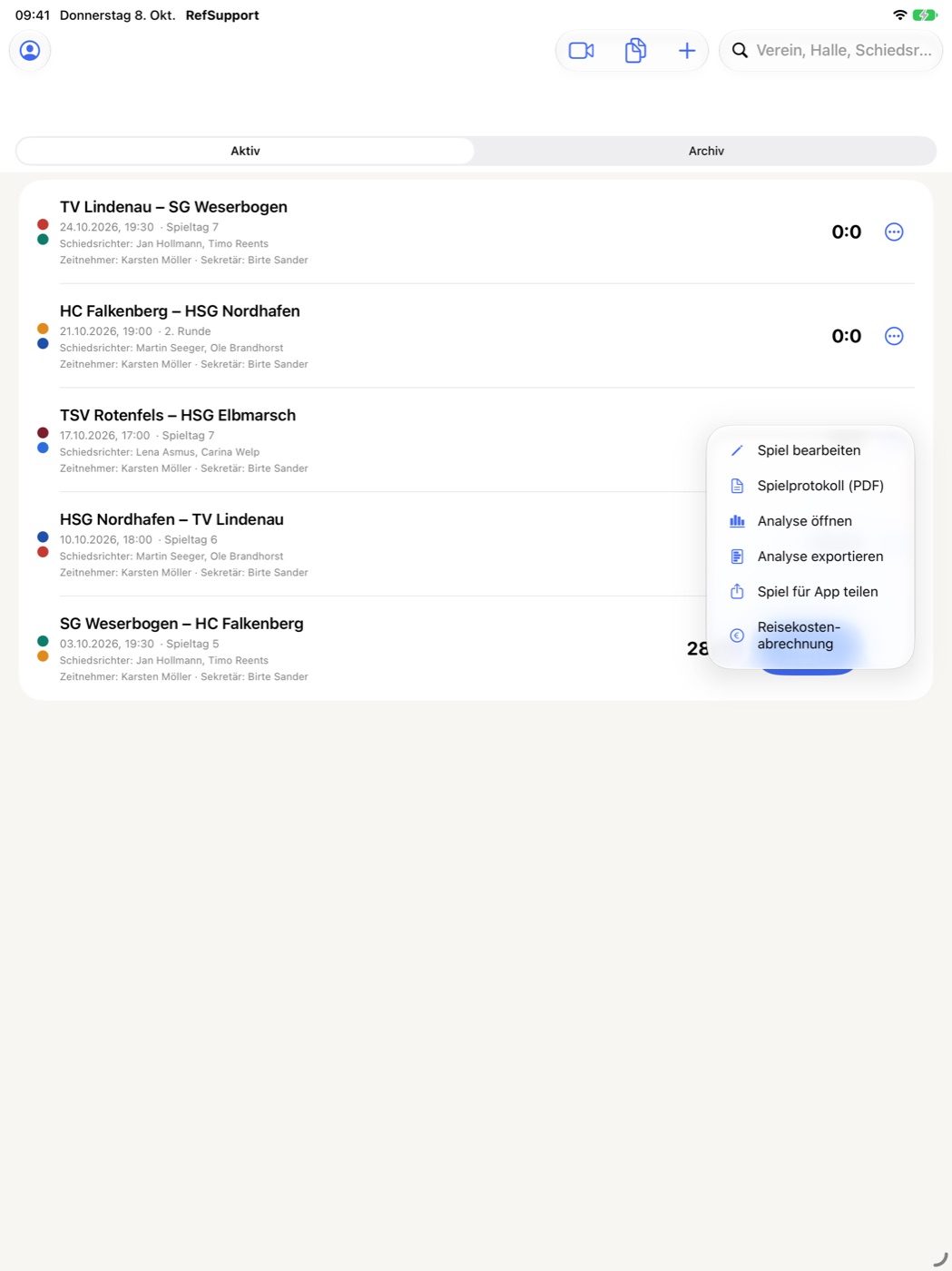
Export match reports, analyses, and travel expense claims as PDF, or share a match as a RefSupport file.
Four short videos walk through the app step by step, using real screens and fictional sample data. All videos are silent; on-screen text is in German.
iPad · 0:51 min
Observing referees: run the match clock, enter observations with rating and category, and share the log.
iPad · 1:12 min
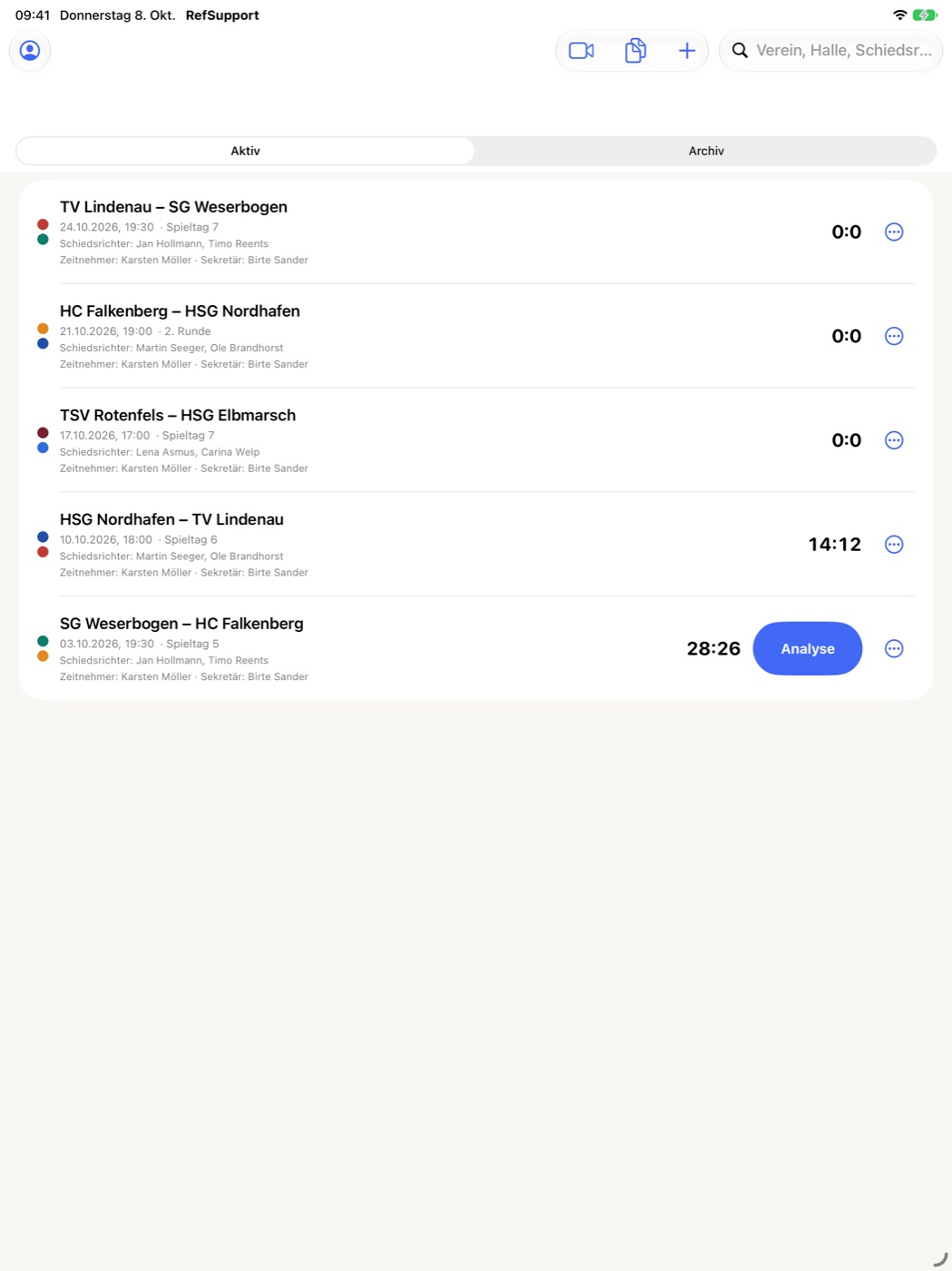
From creating the match to the report: squads, checklists, events and special match situations.
Mac · 0:30 min
Review on the big screen: all scenes at a glance, targeted filters and added remarks.
iPad · 0:40 min
The main features in 40 seconds.
Matches and imported documents are stored on the device. If an iCloud account is available, RefSupport also synchronizes them between your RefSupport devices through your private iCloud/CloudKit database. Profile data such as your name, address, and IBAN is stored separately on the device.
From the match overview, you can select supported competitions from handball.net, the HBL/Sportradar source, and the HBF source. You can also create a match manually or open a shared .refsupportgame file. Network imports are cached locally and may include teams, venues, officials, logos, and photos depending on the source.
In delegate mode, you can scan a paper match sheet, use a selected photo, or open a PDF. Text recognition runs on the device using Apple’s Vision framework. The source image is not stored as part of the match; only the roster data you review is retained.
No. The app does not access the device’s current location or microphone. To calculate mileage, the start and destination addresses you enter are sent to Apple’s map and routing service. Audio is used only to play a Sportlounge video.
This feature is optional. Sign in with your Sportlounge account and enter the relevant game ID or Sportlounge link for the match. If “Stay signed in” is enabled, RefSupport stores your email address, password, club ID, and access token in the local Apple Keychain. Video and event data is loaded directly from Sportlounge.
You can export match reports, analysis reports, and expense claims as PDFs, a delegate summary as text, and complete matches as .refsupportgame files through the system share sheet. Your choice in the share sheet determines the recipient.
In RefSupport, open “My Data” and select “Manage subscription.” Apple will display your subscription management options. You can also manage the subscription in your Apple Account settings. Cancellation must take place at least 24 hours before the current period ends.
Open “My Data” and tap “Restore purchases” in the subscription section. The same action is available on the subscription screen. Use the Apple Account that was used to purchase the subscription.
Check that you are signed in to iCloud on the device and have an internet connection. Then open “My Data” and select “Sync now.” Local content remains on the device while iCloud is temporarily unavailable.
If your question is not answered here, email ref_support@icloud.com. Please include the RefSupport version and describe the steps leading to the issue. Do not send passwords or unnecessary personal data.